
Art Text 4
Graphic design software for transforming any letter, word or text into a masterpiece on your Mac.
Free Download
Strong visuals grab attention, but it’s often the title that makes people stop scrolling. Whether you’re creating content for YouTube, Instagram, or promotional videos, animated 3D titles can instantly elevate your work and give it a polished, professional look.
If you’re working on a Mac, the good news is that you don’t need complex 3D software to achieve this. With the right tools and a clear workflow, creating animated titles becomes surprisingly simple.
In this guide, we’ll walk through how to design and animate eye-catching 3D typography using Art Text and modern AI-powered tools. The key is not just the animation itself, but how the typography looks before it moves.
Start by creating the base of your text using Art Text. This is where you define the look, depth, and personality of your text.
Art Text offers diverse text effect templates that can give you a strong starting point, especially if you want quick results.
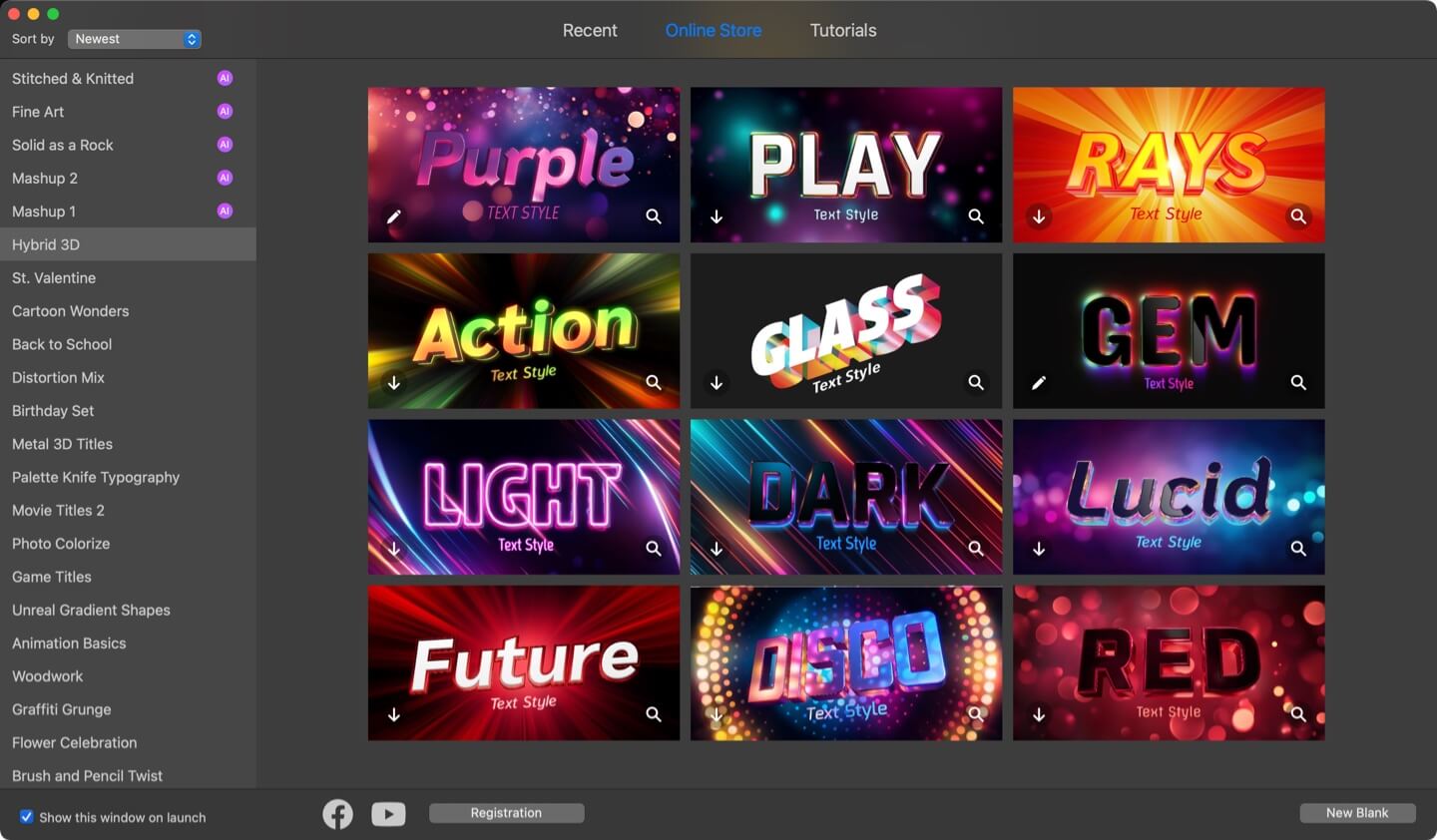
Alternatively, create your own 3D typography from scratch by simply typing a text and see how Art Text generates a three-dimensional text on the fly. Once the 3D text is ready, you can further tweak it:
Small tweaks here make a big difference.
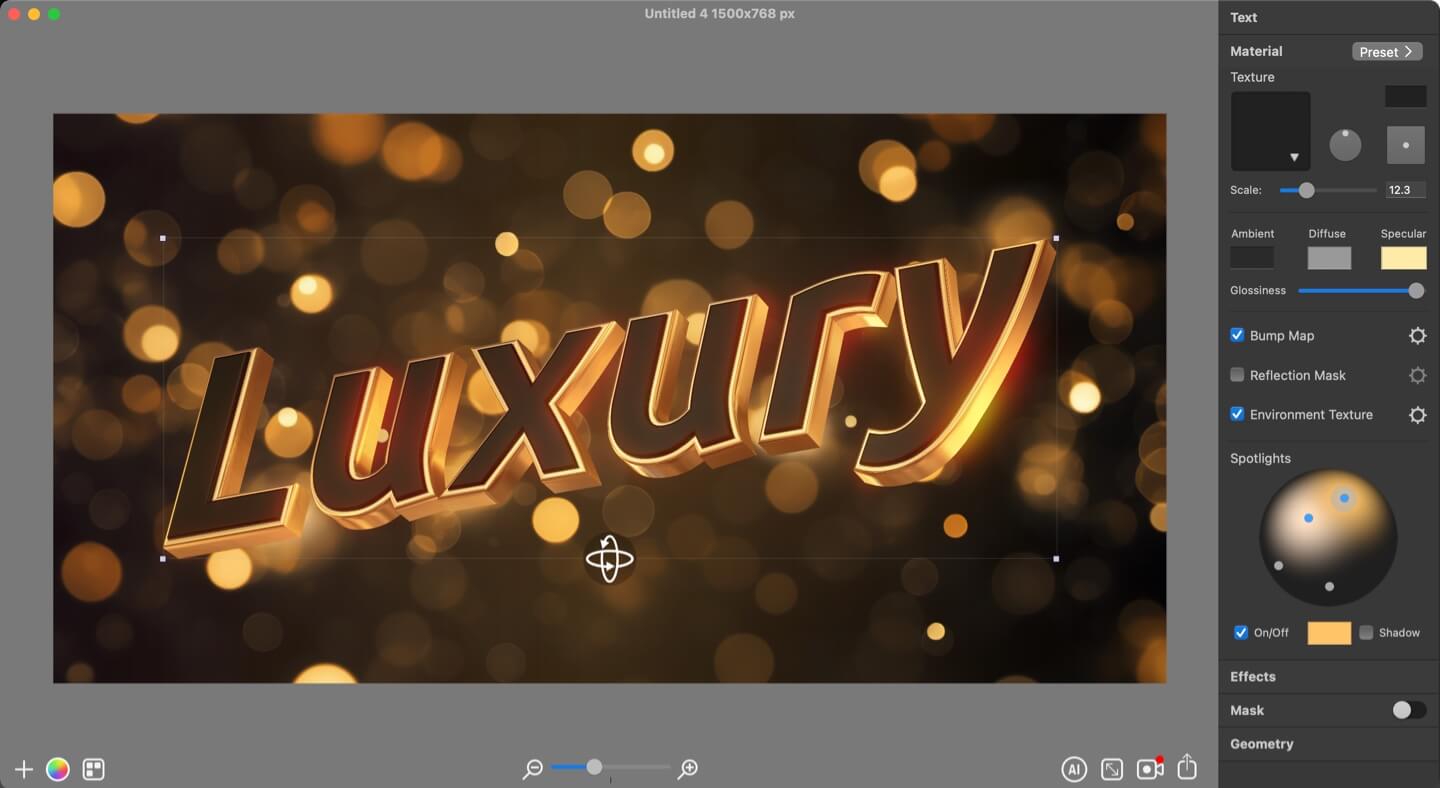
With the current rise of AI, you can export your 3D text design from Art Text to an image file and then use it in AI-based tools to animate it. Google’s Veo and Nano Banana, Runway, Flux and many others do a great job by allowing you to import one or several images and taking care of the animation.
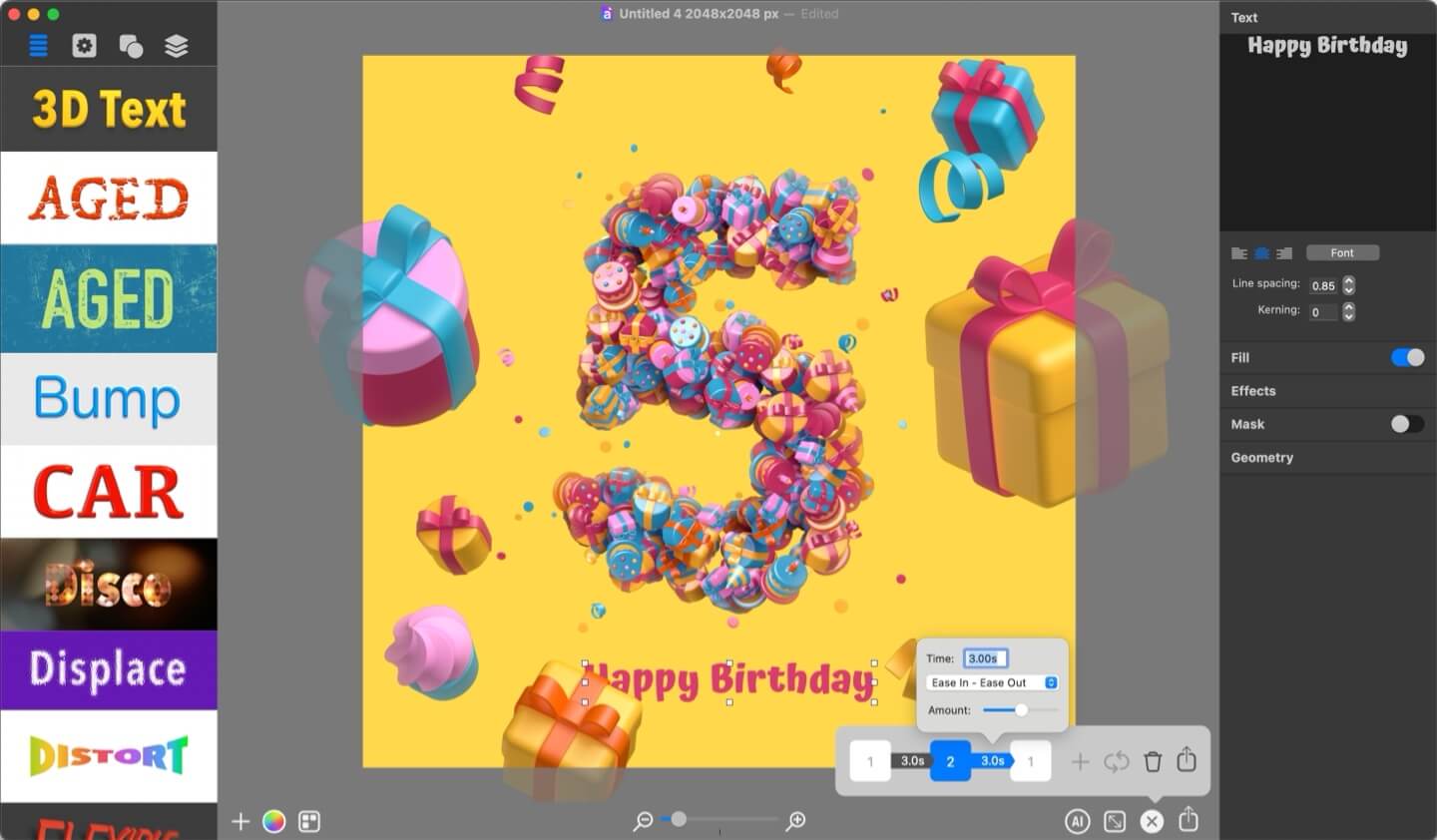
Animation is where your 3D title comes to life. In Art Text, animations are built using keyframes, distinct states of your design placed along a timeline. The app then generates smooth transitions between these states, allowing you to control everything from 3D rotation and movement within the scene to changes in text effects and styling.
To fine-tune how your animation behaves, Art Text provides three transition types:
By choosing the right transition type, you can dramatically influence the tone and feel of your animated 3D typography.
With the growing capabilities of AI-powered tools, you can take your animations even further. Export your 3D text graphics from Art Text as an image, then bring it into platforms like Runway, Flux, Google’s Veo and Nano Banana, or other emerging AI solutions. These tools allow you to import one or multiple images and automatically generate high-quality animations, opening up new creative possibilities with minimal effort.
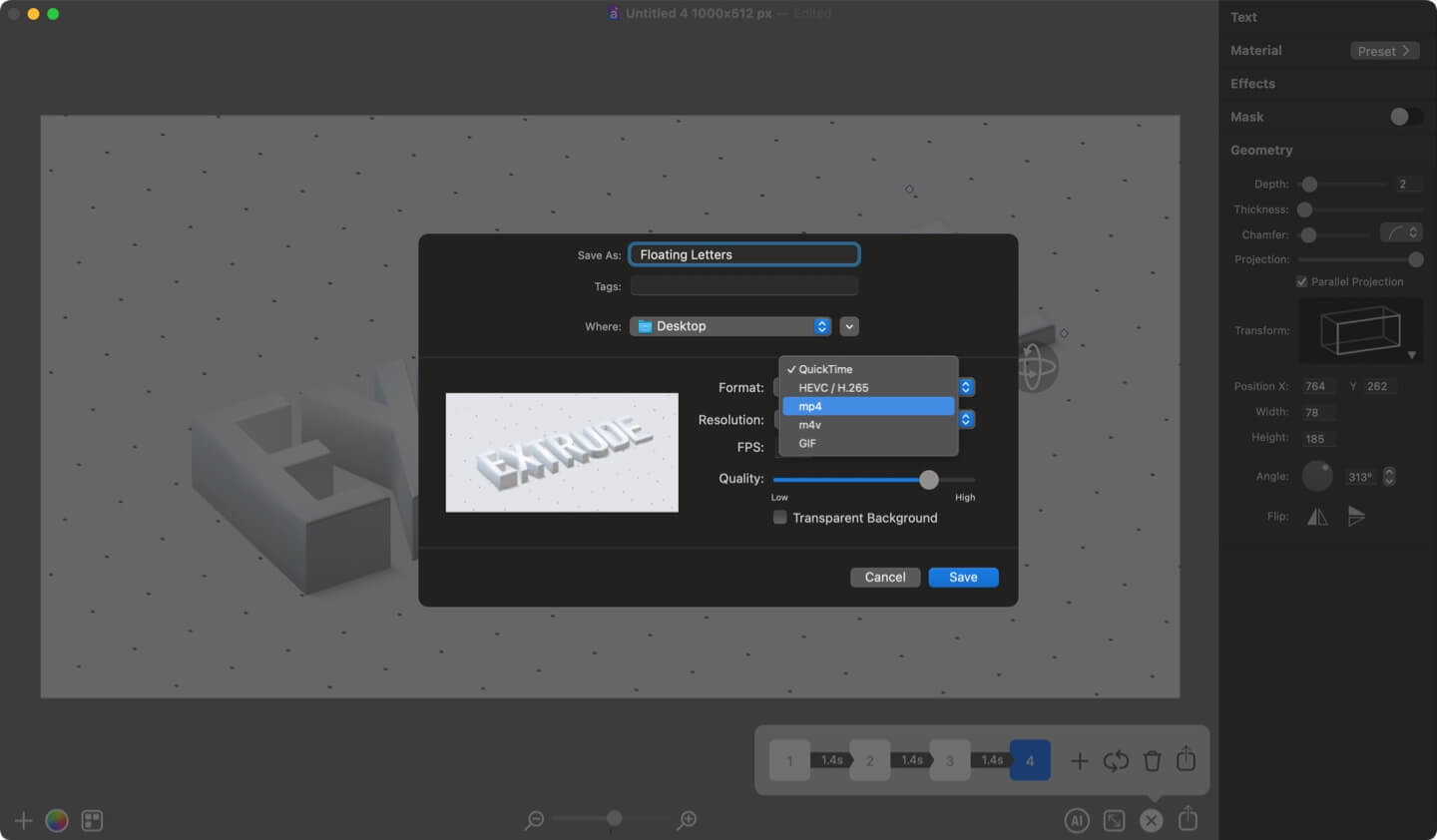
Once your 3D animation looks perfect, you can seamlessly export Art Text animated text videos in MOV, MP4, M4V or GIF formats. And then use these videos in your social media channels.
If you plan to add 3D text animations to other videos using video editors: make sure to export your animations on a transparent background. This single setting is what allows you to seamlessly overlay your new title animation over your actual video footage for use in iMovie, Keynote, or any video production app.
Artificial intelligence video tools typically export generated animations in MP4 format. While some platforms may support additional formats, options remain limited. Transparent background export is generally not available for AI-generated video, meaning the output is always fully rendered with a background. As a result, it’s important to ensure your composition works as a complete scene.
You don’t need incredibly complex animation software to make your videos stand out. By leveraging the built-in 3D engine and text effect tools in Art Text, generating professional animated 3D titles takes minutes, not hours. Download the app to your Mac today and bring your typography to life!